Help
Step-by-step guide
Pick your role below — every screen you'll actually use, walked through in the order you'd naturally click through it.
1
Overview
Your landing screen when you log in — a quick snapshot of the clinic.
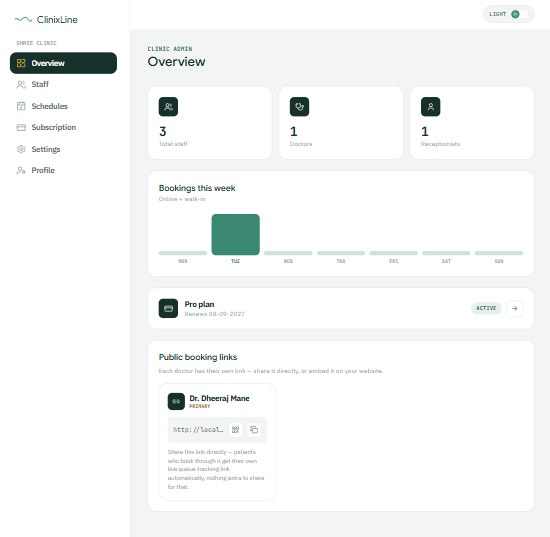
- Staff, Doctors, and Receptionists counts at a glance
- Bookings this week — online and walk-in bookings shown together
- Your subscription plan and renewal date
- Public booking links — one per doctor, with a copy button. Share this directly with patients; their live queue-tracking link is generated automatically once they book, nothing extra to share.
2
Staff — adding someone new
Add a new doctor or receptionist to the clinic from here.
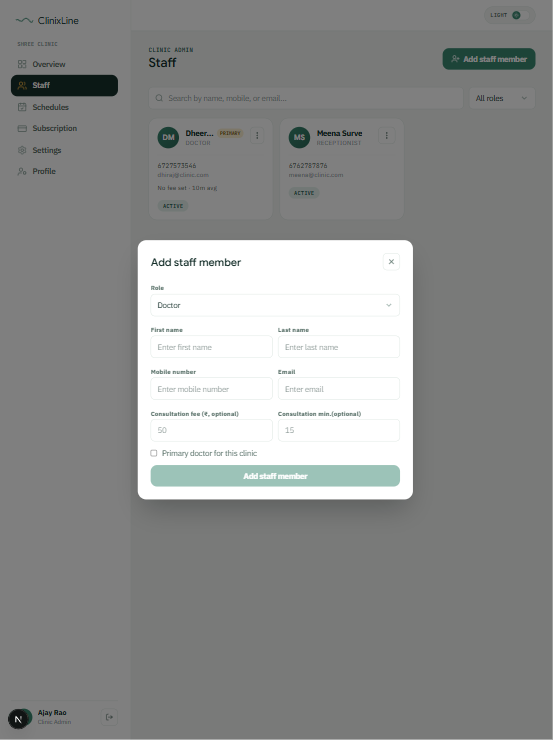
- Pick the role first — Doctor or Receptionist — the form adjusts to match
- Consultation fee and minutes are optional, and only apply to doctors
- Check "Primary doctor for this clinic" if this is the main/default doctor
3
Staff — managing existing members
Each staff member has a three-dot menu for quick actions.
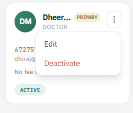
- Edit — update their details
- Deactivate — removes their access without deleting their history
4
Schedules — bulk create
Set a doctor's working hours for a whole date range in one go, instead of day by day.
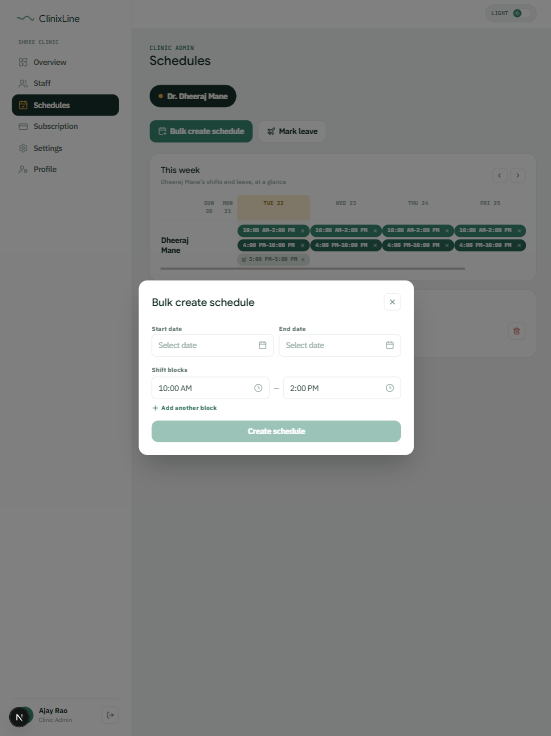
- Select the doctor from the pill at the top if the clinic has more than one
- The weekly view underneath shows all shifts and leave for that doctor at a glance
- Pick a start and end date, set the shift block, and use "Add another block" for split hours — like a morning and an evening shift
5
Schedules — marking leave
Mark a doctor unavailable for a date — full day or partial.
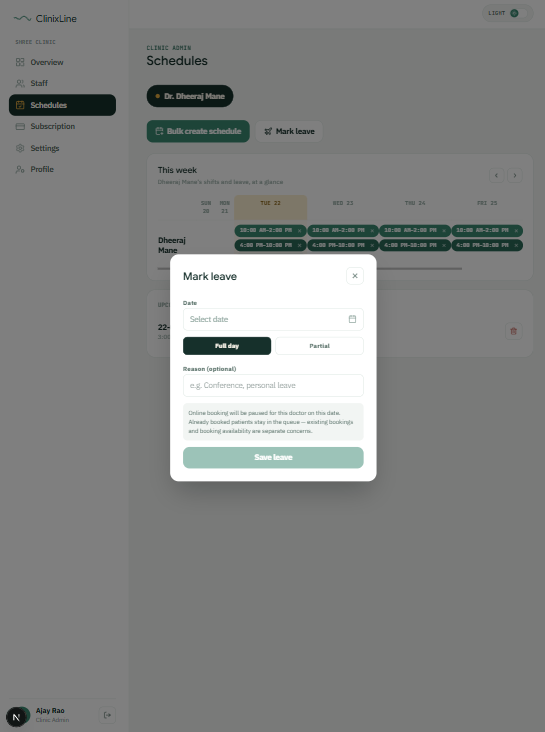
- Full day pauses online booking for that date entirely
- Partial leave lets you set specific hours the doctor is out instead
- Already-booked patients stay in the queue — this only affects new bookings, not existing ones
6
Schedules — deleting & removing
Removing a shift or a leave entry always asks you to confirm first.
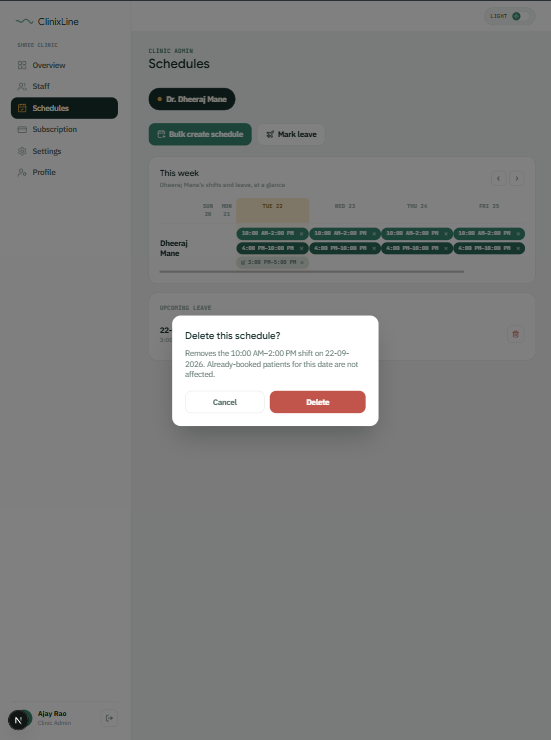
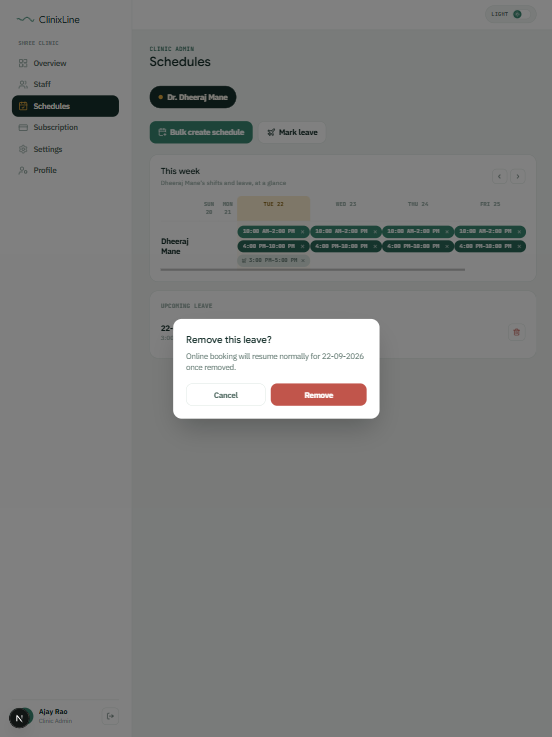
- Deleting a shift only removes that specific block — already-booked patients on that date aren't affected
- Removing a leave entry resumes online booking normally for that date
7
Subscription
A read-only view of the clinic's current plan.
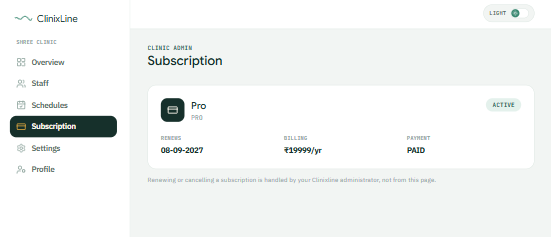
- Shows plan name, status, renewal date, billing amount, and payment status
- Renewing or cancelling isn't done from this page — that's handled by your ClinixLine administrator
8
Settings
The main controls for how booking and the live queue behave, clinic-wide.
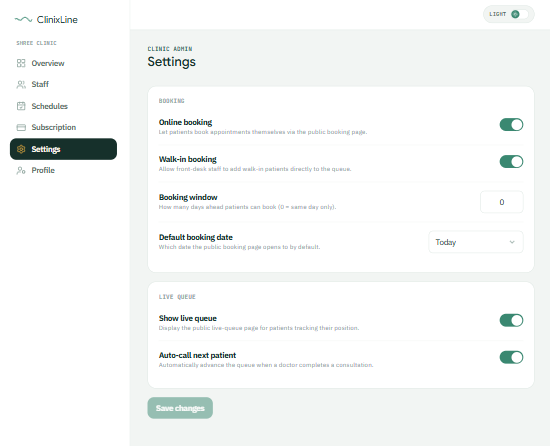
- Online booking — lets patients book themselves via the public page
- Walk-in booking — lets front-desk staff add walk-ins directly to the queue
- Booking window — how many days ahead patients can book (0 means same-day only)
- Default booking date — which date the public booking page opens to by default
- Show live queue — controls whether patients can publicly track their position
- Auto-call next patient — automatically advances the queue once a consultation is completed
- Nothing here saves automatically — click "Save changes" when you're done
9
Profile
Your own personal details as the clinic admin.
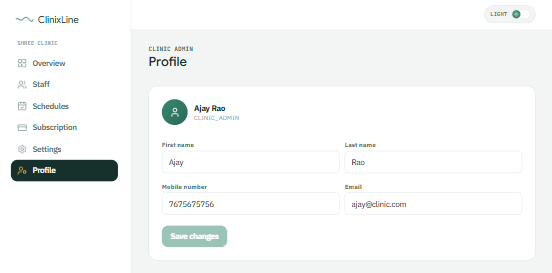
- Update your own name, mobile number, or email here
- This is about YOUR account specifically, not the clinic's shared settings